
John has been a Microsoft MVP, in the award categories of Visio and M365, since 2008.

John Goldsmith
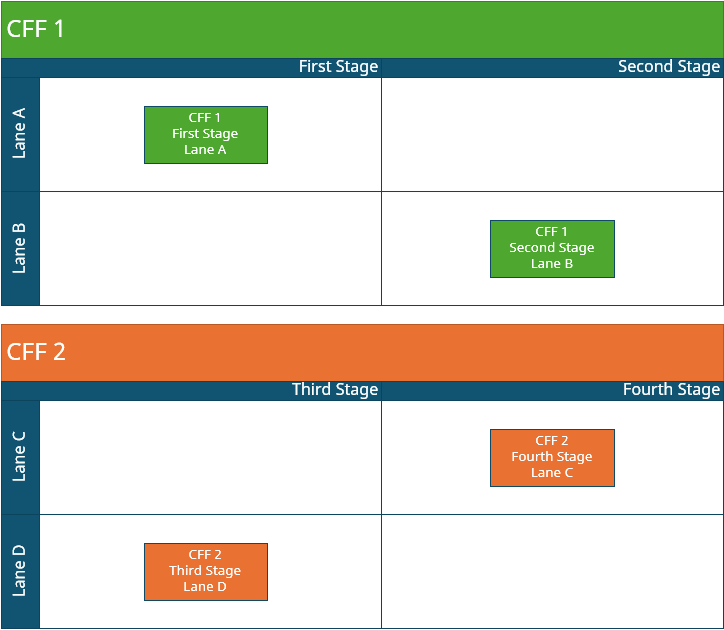
Visio's Cross Functional Flowchart (CFF) template lets you to reference the title of the swimlane that shape sits in. However, you cannot do the same for a Phase or for the title of the CFF itself. In this post I describe how to add this capability in your own diagrams.
Here are some reasons why you might want to do this:
You can download the supporting file for this post here:
To start off, let's go over how the CFF is built.
The CFF template leans heavily on Visio's Structured Diagramming capabilities. Structured Diagramming allows relationships between shapes to be created based on position - unlike the traditional methods of connection and structure, where a sub-shape clearly has a relationship with its parent group shape.
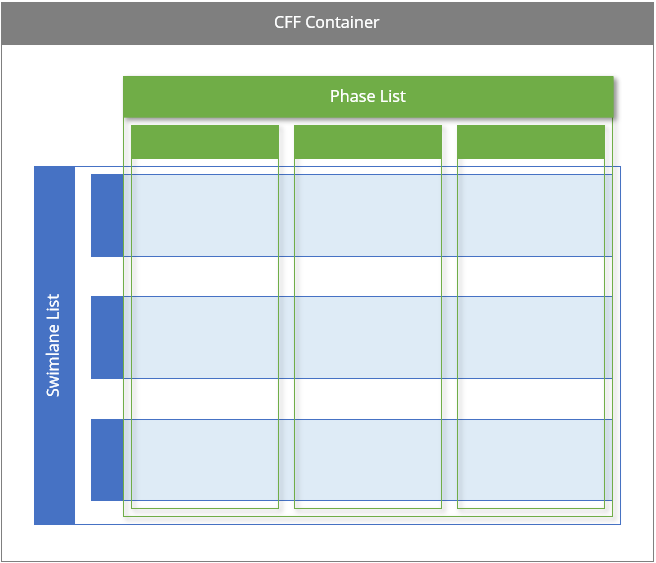
You can think of the CFF as being composed of shapes layered on top of each other. Each shape carries one or more categories that determine which shapes can become members of other shapes. In the picture above, CFF Container accepts any shape that has a category of 'CFF List' and, because Swimlane List (blue) and Phase List (green) define this value in their User cells, they become members of the container. A similar thing happens for Swimlane rows and Phase columns, which also become members of their respective lists.
Before I move on, I'll call out that when I refer to a flowchart shape below, I'm talking about the shape in which you want to surface the CFF title and Phase heading data. This could be any of the shapes in the Basic Flowchart Shapes stencil, such as Process or Decision, or any other shape that you want to appear in the CFF swimlanes.
The existing formula that allows Visio to retrieve the name of the swimlane that a flowchart shape is sitting in looks like this:
Prop.Function =IFERROR(CONTAINERSHEETREF(1,"Swimlane")!User.VISHEADINGTEXT,"")
The important part is the CONTAINERSHEETREF function. Its purpose is to get a reference to the first container shape, whose category is "Swimlane", from the array of relationships that are defined in its Relationships cell. If this resolves, then the rest of the expression should return the value in the cell that it's pointing to: User.VISHEADINGTEXT. If you open the ShapeSheet for that Swimlane, you'll find that cell has a formula that refers to the text for the heading (sub-shape) of the Swimlane.
If you peer inside the CFF Container shape, you'll find it too has a User.visHeadingText cell but, for some reason, it has no formula. You can fix that by using the same formula as the Swimlane:
User.visHeadingText = SHAPETEXT(Sheet.3!TheText)
...where Sheet.3, in my case, is the sub-shape that contains the title text.
Back in the flowchart shape, you might think you could use the same CONTAINERSHEETREF formula and just look for the CFF Container category, but that won't work. The reason is that a flowchart shape doesn't have a direct relationship with the CFF Container. Instead, you need to follow the relationships all the way to the top. The flowchart shape does have a relationship with the Swimlane in which it's sitting. From there you need to find the housing Swimlane List, and from that list, you finally need to find the list's container: CFF Container.
You already know how to get a container relationship using the CONTAINERSHEETREF function. For a list relationship there's a similar function called LISTSHEETREF.
So, now you can build this into your flowchart shape as follows:
Prop.MainTitle =
IFERROR(
	CONTAINERSHEETREF(LISTSHEETREF(CONTAINERSHEETREF(1,"Swimlane")),
					          1,
					          "CFF Container")!User.visHeadingText,
  "")
The key point is that, although it is not documented that either CONTAINERSHEETREF or LISTSHEETREF take a reference as a first argument, they do. Without the reference, the relative shape is assumed to be the shape you're calling from - the flowchart shape in this case. But, it turns out that you can pass in another reference to be used as the relative shape.
Getting hold of the Phase name is essentially the same task as getting hold of the swimlane, the only difference being that User.visHeadingText doesn't exist in the Phase shapes.
Open up the Separator master (that's the name of the Phase master) and add the following cell and formula to the top level group shape:
User.visHeadingText = SHAPETEXT(Sheet.6!TheText)
...where Sheet.6, in my case, is the sub-shape that contains the Phase heading text.
Back in the flowchart shape add the following Shape Data row and associated formula:
Prop.Phase =IFERROR(CONTAINERSHEETREF(1,"Phase")!User.visHeadingText,"")
This looks up a reference to the first container shape with a category of Phase and returns the text in the User.visHeadingText cell.
You are not restricted to collecting data about the CFF that your flowchart shape sits in - you can act on those values, as well. For example, by using the formula below in the FillForegnd cell, you can reference the fill color of the CFF container as per the image at the top of this post so that the flowchart shape picks up the same color as the respective container:
FillForegnd =IFERROR(CONTAINERSHEETREF(LISTSHEETREF(CONTAINERSHEETREF(1,"Swimlane")),1,"CFF Container")!FillForegnd,17)
Another example might be to assign a cost multiple for shapes that sit in a given swimlane and or phase. Your resulting total cost property would then carry the cost calculation.
By adding a small number of cells and formulas to the CFF container, swimlane, and phase masters, you can expose their titles and other properties directly in your flowchart shapes. Whether you are coloring shapes, reporting costs, or driving other logic, these relationships give you much richer, position-aware diagrams.
John has been a Microsoft MVP, in the award categories of Visio and M365, since 2008.